Preference Center

For the end user

What the recipient sees and can do. Relevant for marketers and support staff.

What is the Preference Center?

A preference center is an online environment where users can manage their personal preferences regarding communications from an organization. There, users can manage:
  • Communication Preferences: subscribing to and unsubscribing from email lists and types of communications, such as promotions, news, events, and product updates;

  • Profile Information: initials, first name, middle name, last name, email address, organization, and gender;

  • Interests: topics the user is interested in (if configured, see Setup & Configuration).

Why a Preference Center?

  • Ease of Use: Customers decide for themselves how and about what they are contacted;

  • Relevance: communication is better tailored to the recipient's needs;

  • Privacy and Compliance: supports compliance with the GDPR;

  • Lower cancellation rate: If you can opt for a smaller amount, you don't have to cancel your subscription entirely.

Accessibility

Users can access the Preference Center in two ways:
  • through alogin button on the website, which leads to the login page;

  • viadirect links in emails ("Manage Preferences," "Update Your Preferences"). These links contain a TID (Ternary ID) that securely identifies the user, eliminating the need to log in (see Setup & Configuration).

Log In

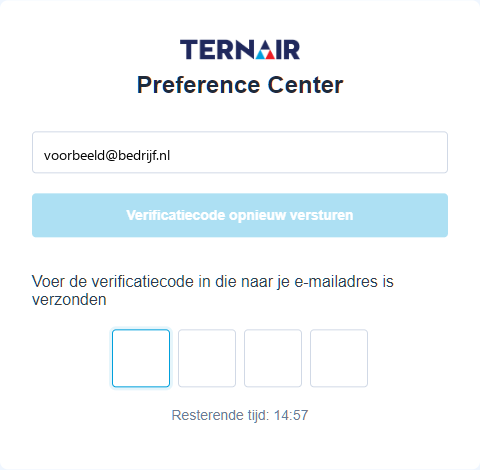
If TID is not included in the URL, the user is taken to the login page ({{customerurl}}/login). The user enters the email address and clicks onLog In .
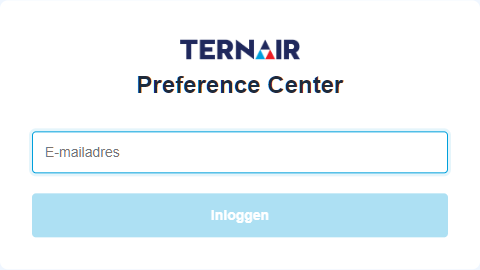
Figure 1: The login page.

The user will then receive an emailverification code. After entering the code, the user is logged in. The code is valid for a limited time (the remaining time is displayed) and can beResend verification code be sent again.

Figure 2: Enter the verification code.

Newsletters

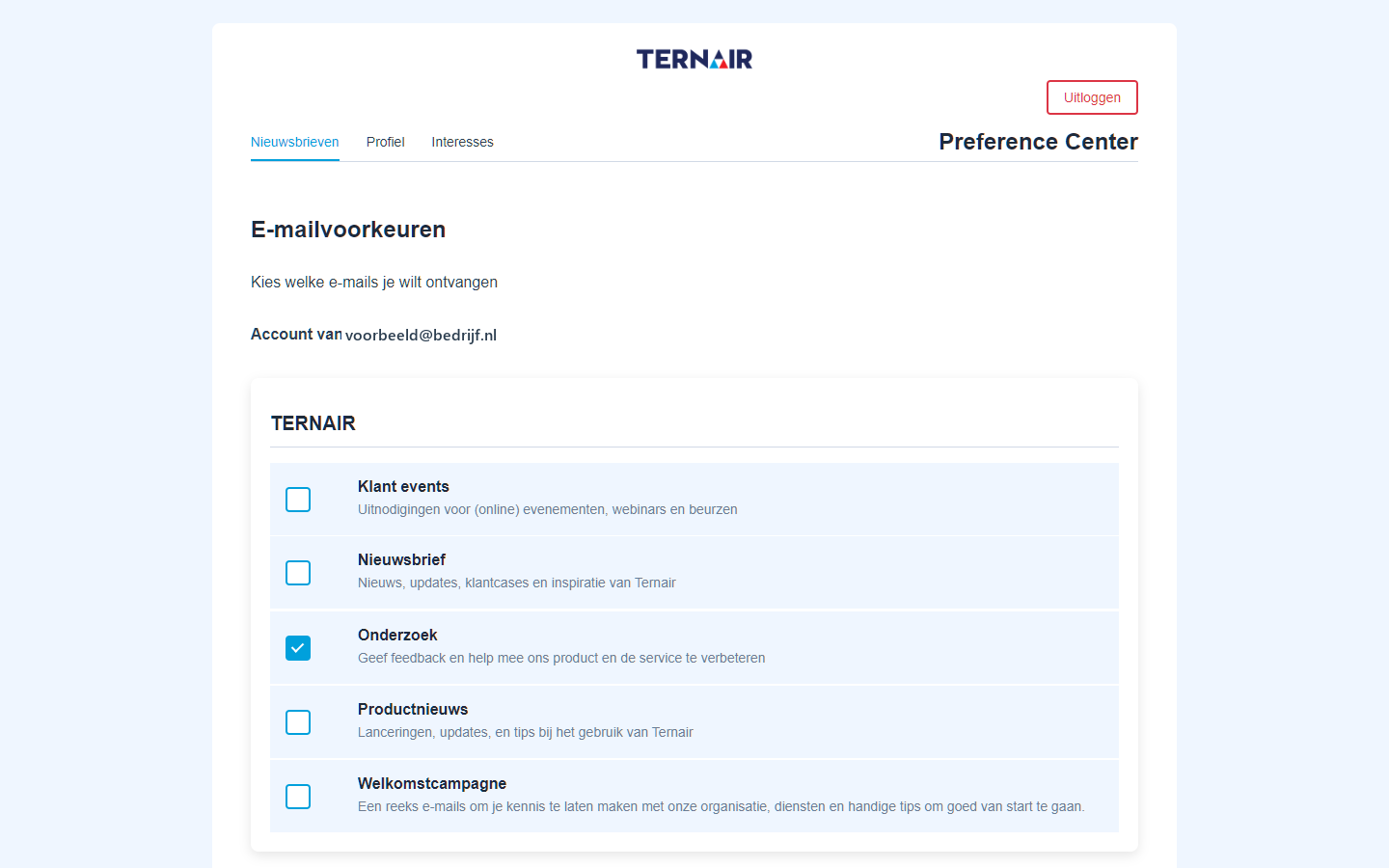
On the tabNewsletters The user selects which emails he or she wants to receive. Each list includes a description; the user can use the checkboxes to subscribe or unsubscribe immediately. Which lists are displayed here is determined in the configuration (see Setup & Configuration).

Figure 3: Managing email preferences by list.

Profile

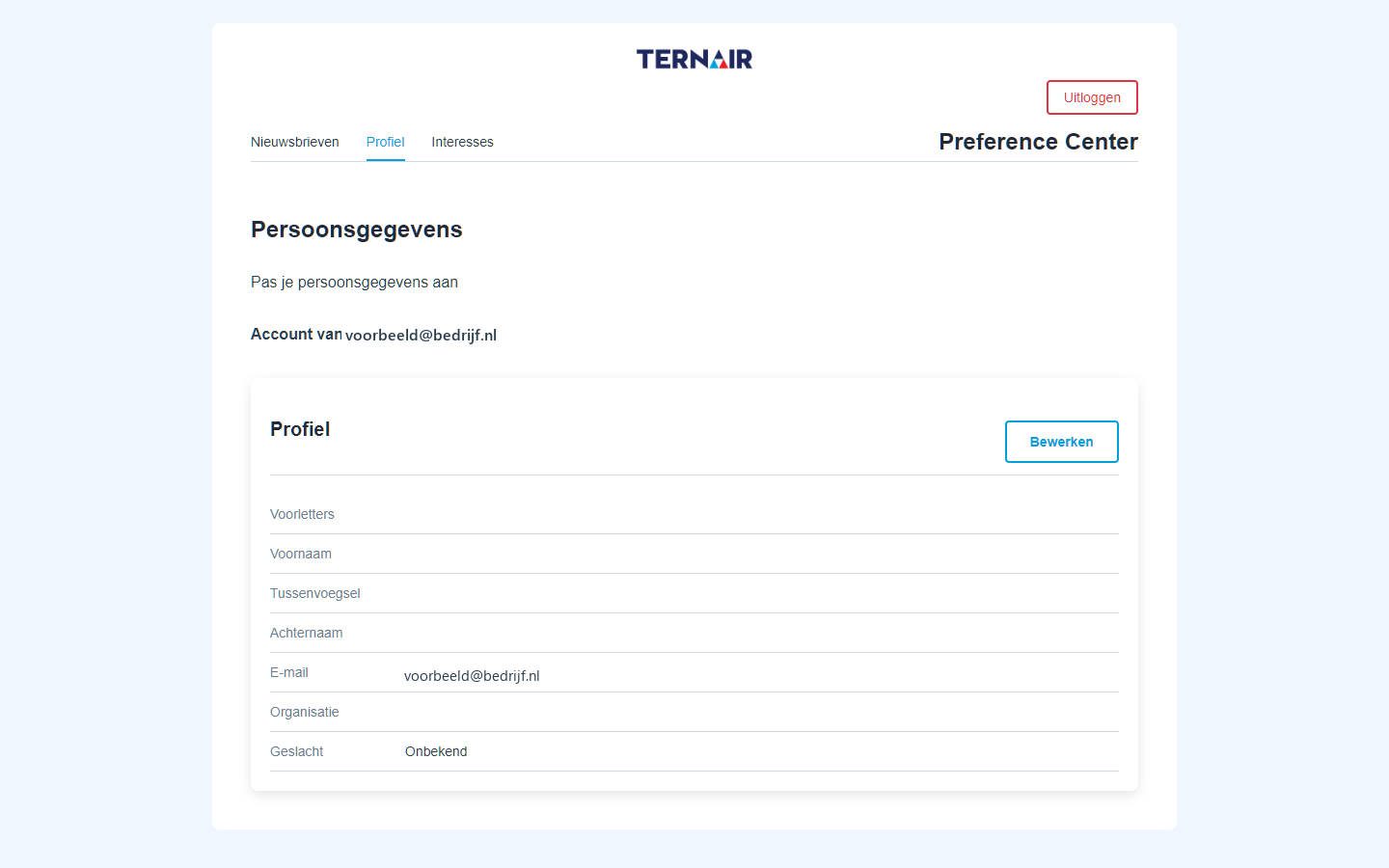
On the tabProfile The user manages his or her personal data. By default, the data is displayed in read-only mode.

Figure 4: Profile page (view mode).

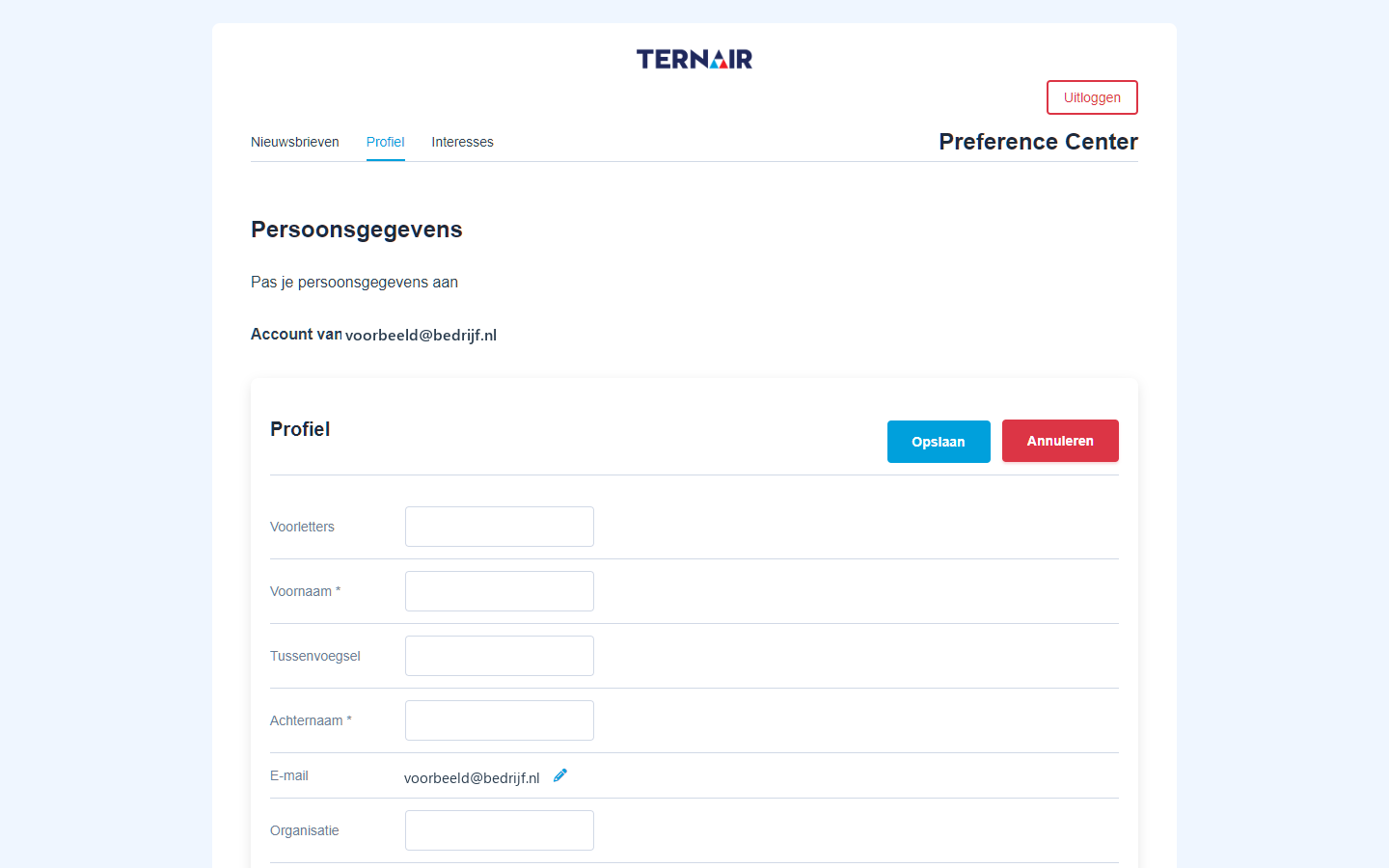
Using the buttonEdit the fields become editable. WithSave the changes will be implemented;Cancel rejects them. Depending on the configuration, you may be asked for an additional verification code when saving.

Figure 5: Profile page (edit mode).

Theemail address The user can edit the address by clicking the pencil icon next to it. A verification code will be sent to thenew sent to your email address; the change will not take effect until you enter that code.

Interests

The tabInterests is visible only if an interest properties list has been set up (see Setup & Configuration). Here, the user can select or deselect their interests; changes are saved immediately.
Interests can be displayed in three ways, depending on the layout:
  • Uncategorized: list all interests as separate lines one below the other;

  • by category: interests grouped by category (see Figure 6);

  • mixed: Interests without a category appear at the top, followed by the categories.
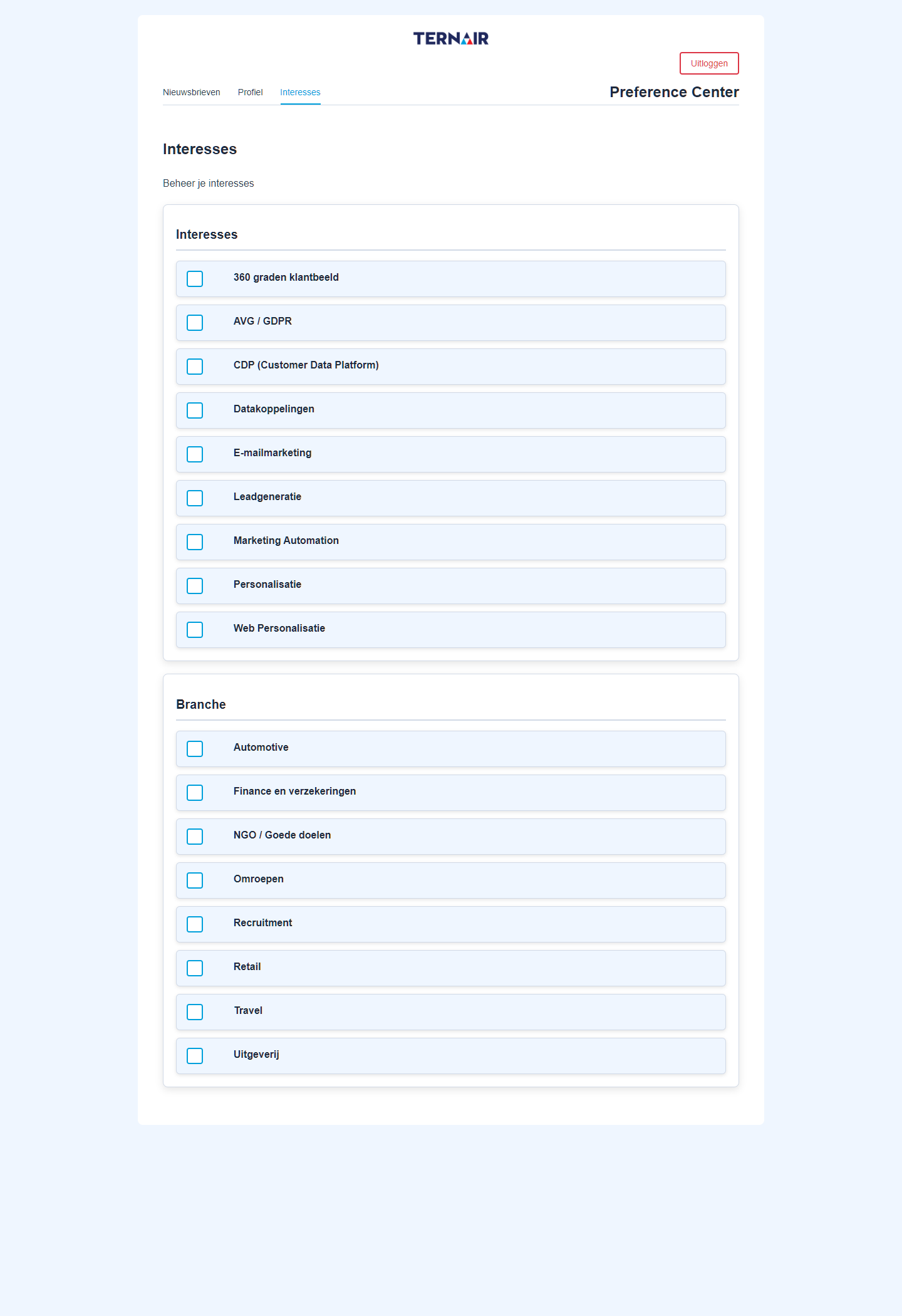

Figure 6: Interests page, view with two categories.

Unsubscribe

Unsubscribe links in emails lead to the unsubscribe page:
{{customerurl}}/unsubscribe?ezine_code=[ezinecode]&tid=~tid~.
The page has two modes of operation, depending on the configuration:
  • The cancellation will becarried out immediately when opening the page, or

  • The user first confirms the logout with afastening button.

After logging out, the user will see the following confirmation:"You have successfully unsubscribed from this newsletter".

Confirm Registration (Double Opt-In)

Anyone who signs up for a newsletter using the double opt-in process will receive a confirmation email. The link in that email contains a unique AAP key and leads to{{customerurl}}/confirm?aapkey=[aapKey]. After opening it, the user sees the confirmation:"You have successfully subscribed to this newsletter".

Setup & Configuration

For administrators: How to set up and integrate the Preference Center.

Identification via TID

Links in emails contain aTID (Ternair ID) as a URL parameter. Using the TID, the Preference Center retrieves the corresponding email address, newsletter subscriptions, and profile information via the Interact API. The user does not need to log in.
If the URL does not contain a (valid) TID, the user will be redirected to the login page and will gain access via an authentication code sent by email (see Chapter 4).

Design Options

  • Multi-tenant support: Multiple brands or labels are managed from a single preference center, each with its own settings;

  • Secure Profile Management: Changes are secured with a verification code sent by email;

  • Multilingualism: Dutch, English, and German; all texts can be customized for each customer using text codes, without any programming;

  • Custom Brand Identity for Each Client: The logo, colors, and font are customized for each client;

  • Email Processing via Webhook: The verification code email can be sent via a webhook as an alternative to SMTP;

  • Exclusion Lists: Specify which email lists are or are not visible in the Preference Center.

Configure Interests

Interests are properties that are stored as interest data in the profile. Here's how to set them up:
  • In Ternair Campaign, create the properties underGeneral Settings > E-zines > Properties and check the box for each property"Can be customized" on;

  • Configure the list of interest attributes for the Preference Center; this will make the Interests tab visible;

  • Optionally, assign one per interestcategorie . Interests with a category are grouped together; interests without a category appear at the top.

List of URLs

Page

URL

Login Page

{{customerurl}}/login

Newsletters

{{customerurl}}/profile?tid=~tid~

Profile

{{customerurl}}/profile?tid=~tid~&section=profile

Interests

{{customerurl}}/profile?tid=~tid~&section=interests

Unsubscribe

{{customerurl}}/unsubscribe?ezine_code=[ezinecode]&tid=~tid~

Confirm Registration

{{customerurl}}/confirm?aapkey=[aapKey]

Replace{{customerurl}} via the URL of the customer's preference center, for examplepreferencecenter.customer-name.nl. The parameters~tid~ are automatically filled in by Ternair Campaign upon sending.

Copyright © 2026 Ternair.